Sciatica can flare when mechanics of the lower back and hips are stressed by poor setup. This article explains evidence-informed steps to optimize your chair, desk, monitor, and movement patterns. You’ll learn practical adjustments you can implement this week to promote comfort, reduce pain, and improve long-term posture in a busy work life.
Understanding the link between desk setup and sciatica
Sciatica refers to pain that radiates along the sciatic nerve, often from the lower back or buttocks down the leg. Mechanical factors—such as a compressed lumbar spine, tight hip flexors, or a misaligned pelvis—can aggravate this nerve. A workplace designed with ergonomics in mind helps maintain a neutral spine and balanced load across the hips and lower back.
Key risk factors you can influence include seating that is too high or too low, a monitor placed too far or too low, and prolonged static postures. By optimizing the alignment of your hips, knees, and ankles, and by supporting the natural curves of the spine, you reduce cumulative strain that can contribute to sciatica symptoms over time.
Elements of an ergonomic desk setup for sciatica prevention
Chair and lumbar support
A good chair supports the lower back’s natural curve and allows adjustments for height, depth, and back angle. Sit with your hips as close to the back of the chair as comfortable, and ensure the chair depth leaves about two to three fingers’ width between the edge of the seat and the back of the knees.
- Lumbar support should be adjustable to fit the lower spine’s inward curve.
- Seat height should let your feet rest flat on the floor or on a stable footrest, with knees near 90 degrees.
- Armrests should be adjustable to keep shoulders relaxed and forearms supported without raising the shoulders.
- Consider chairs with a slight recline (about 100–110 degrees) to reduce spinal load during tasks.
Desk height, monitor, and keyboard alignment
Desk height and device placement are critical for maintaining a neutral upper body posture. The goal is to keep your forearms parallel to the floor and your elbows close to your sides.
- Desk height should allow your elbows to rest at about 90 degrees, with forearms supported while typing.
- Monitor top should be at or just below eye level, about an arm’s length away (roughly 50–70 cm, adjusted to personal comfort).
- Screen distance and angle reduce glare and discourage slouching. If you wear bifocals or progressives, position the monitor slightly lower to minimize neck strain.
- Keyboard and mouse placement should be close enough to prevent reaching; maintain a neutral wrist position.
Foot positioning and accessories
Feet should be flat on the floor or on a stable footrest. Elevation and support help prevent tight hip flexors and knee strain that can contribute to postural fatigue.
- If necessary, use a footrest to maintain a 90-degree knee angle and comfortable hip alignment.
- A small anti-fatigue mat can be beneficial when using a sit-stand workstation for longer periods.
- Keep ankles uncrossed and ankles and knees aligned to reduce torsion through the pelvis.
Standing desk considerations
Alternating between sitting and standing can reduce cumulative loading on the spine, but it requires proper setup to avoid new forms of strain.
- Start with a sit-stand ratio such as 1:1 or 2:1 (sitting more than standing initially if you’re new to standing work).
- Ensure a comfortable standing posture: feet hip-width apart, knees soft, and the monitor at eye level.
- Use an anti-fatigue mat and adjust footwear to reduce lower-limb fatigue.
Move and stretch strategy
Prolonged static postures contribute to tension in the back and hips. Integrating regular movement is essential for sciatica prevention.
- Schedule microbreaks every 30–60 minutes to stand, walk, or gently stretch the lower back, hips, and hamstrings.
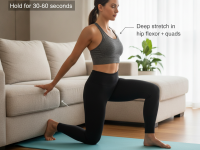
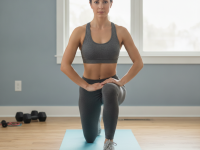
- Incorporate simple desk-friendly stretches: hip flexor stretch, seated spinal twist, ankle circles, and shoulder rolls.
- Use reminders or apps to prompt you to change positions and take short activity breaks.
Practical setup checklist
- Chair with adjustable height, seat depth, lumbar support, and armrests.
- Desk at a height that allows elbows to rest at 90 degrees; monitor at eye level.
- Keyboard and mouse positioned for neutral wrist posture; within easy reach.
- Footrest or supportive mat to maintain feet flat and knees at 90 degrees.
- Occasional standing with a comfortable height and monitor alignment.
- Regular movement: microbreaks and stretches every 30–60 minutes.
- Cable management to reduce clutter and promote safe movement.
Common mistakes to avoid
- Sitting with a rounded back or slouched shoulders for extended periods.
- Raising the monitor too high or too far away, forcing neck flexion or extension.
- Using a keyboard or mouse that is too far away, causing shoulder and wrist strain.
- Crossing legs or tucking legs under the chair for long durations, which disrupts pelvic alignment.
- Ignoring signs of discomfort and not adjusting chair or desk height accordingly.
Conclusion: practical, evidence-informed steps for long-term relief
Adopting an ergonomic desk setup for sciatica prevention combines chair ergonomics, proper desk and monitor alignment, and an intentional movement routine. While every body is different, the core principles—neutral spine, relaxed shoulders, elbows close to the body, and regular breaks—consistently support lower back health. If you have persistent or worsening sciatic symptoms, consult a clinician or physical therapist to tailor a plan that fits your anatomy and daily routine.
Implement these changes gradually, measure how your body responds, and adjust as needed. With a combination of ergonomic adjustments and proactive movement, you can reduce the risk of sciatica flare-ups and create a healthier, more productive workday.
Create an infographic-style illustration showing the ideal ergonomic setup for preventing sciatica. Include side-view and top-down perspectives:
– Side view: person seated with hips at ~90 degrees, knees ~90 degrees, feet flat; chair lumbar support aligned with lower back; monitor at eye level; keyboard and mouse at elbow height; labels pointing to each element (lumbar support, 90-degree angles, monitor height, keyboard position, footrest).
– Top-down view: desk with clear zones for monitor, keyboard, and mouse; ruler icons indicating safe reach distances; color-coded zones for posture cues (yellow for caution, green for ideal). Include callouts for microbreaks and standing intervals.
– Visuals should include a simple clock or reminder icon and short captions such as “Sit upright, feel neutral spine,” “Feet flat, knees at 90°,” and “Take microbreaks every 30–60 minutes.” Use a clean, professional color palette (blues, grays, and greens) with accessible typography.